How to Convert JPG to PDF on Mobile (Android and iPhone), Free
Turn photos of documents into one PDF on your Android phone or iPhone without installing an app. Set the page order, page size and margins, and keep the file small.

On this page
A college asks for your certificates "as one PDF". A client wants the signed pages back today. You have the photos on your phone, but no laptop and no scanner. You don't need one: any Android phone or iPhone can turn photos into a clean, properly ordered PDF in a minute, without installing an app.
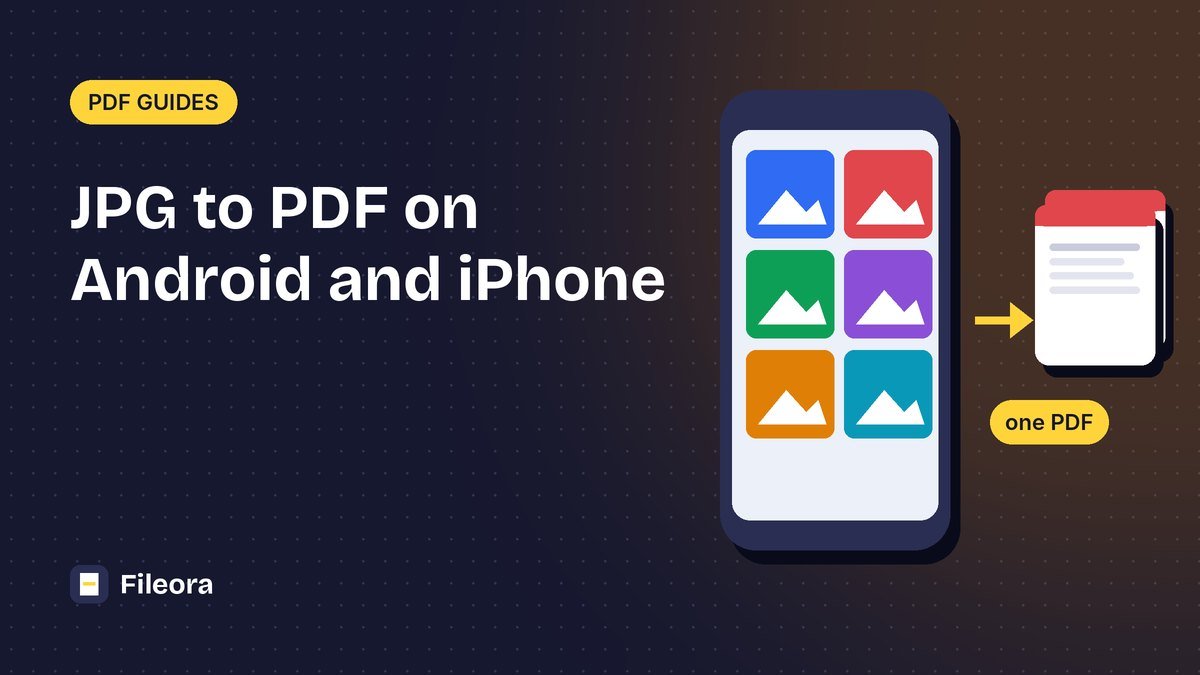
Quick answer: open JPG to PDF in Chrome or Safari, tap Choose images, select your photos, drag them into the right order, choose A4, and tap Convert to PDF. The PDF is saved to your Downloads (Android) or Files app (iPhone).
Method 1: JPG to PDF in your phone's browser
This works the same on Android and iPhone, and your photos are never uploaded: the PDF is created on your phone.
- Open JPG to PDF in Chrome, Safari or any modern browser.
- Tap Choose images and select all the photos you want in the PDF. You can add more later with Add more.
- Drag the pictures into the right order. Each picture becomes one page, starting with page 1 on the left.
- Choose the page size: A4 for documents, US Letter if the recipient asks for it, or Fit image to keep each page the exact size of the photo.
- Choose the orientation (Auto works for most photos) and the margin (None, Small or Large).
- Tap Convert to PDF, then Download.
On Android, the PDF is in the Downloads folder or the Files app. On iPhone, Safari saves it to Files → Downloads, or tap the share icon to send it straight to WhatsApp or Mail.
Reorder pages, choose A4 or Letter, and download one PDF. Works on any phone.
Method 2: Take the photos and make the PDF in one go
If the papers are in front of you, skip the gallery. Scan to PDF opens your phone camera, lets you photograph page after page, and builds the PDF for you. Choose the Document look for crisp black-and-white text, Greyscale to remove colour casts from indoor light, or Original for colourful pages.
Method 3: Use what is already on your phone
Your phone can also create a PDF without any website. The steps differ slightly between brands and versions.
iPhone
- From photos: in the Photos app, select the photos, tap Share → Print. In the print preview, spread two fingers on the first page to open it as a PDF, then tap Share → Save to Files.
- Scan a document: in the Files or Notes app, choose Scan Documents, photograph the pages, and save.
Android
- From photos: open a photo in your gallery or Google Photos, tap ⋮ → Print, choose Save as PDF as the printer, and tap the PDF button. This is easiest for one or a few photos.
- Scan a document: in the Google Drive app, tap + → Scan, photograph the pages and save the PDF to Drive.
These built-in options are fine for a quick single page. For several photos in a specific order, a fixed A4 size and even margins, Method 1 is faster and gives a neater result.
Tips for a clear, professional PDF
- Lay the paper flat on a dark table and hold the phone straight above it.
- Use daylight and avoid the shadow of your phone and hand.
- Crop before converting. Remove table edges and fingers with Crop Image.
- Rotate sideways photos first with Rotate & Flip Image, or let Auto orientation handle them.
- One page per photo. Don't photograph two pages at once; if you did, split them later with Split Pages in Half.
- iPhone HEIC photos: most browsers convert them to JPG automatically. If a photo can't be selected, convert it first with HEIC to JPG.
Keep the PDF small enough to send
Photos from modern phones are large, so a 10-page PDF can easily be 20–30 MB. To make it smaller:
- Before converting, shrink the photos with Compress Image.
- After converting, use Compress PDF.
- For a strict upload limit such as 100 KB or 200 KB, follow our guide on how to compress a PDF to 100 KB or 200 KB.
Need to add the new pages to a PDF you already have? Put both files into Merge PDF.
Frequently asked questions
How do I convert JPG to PDF on my phone without an app?
Open JPG to PDF in your phone's browser, select your photos, arrange them, choose A4 and tap Convert to PDF. No app or sign-up is needed.
Can I combine many photos into one PDF?
Yes. Select all the photos at once; each photo becomes one page, in the order you arrange them.
Where is the PDF saved on Android and iPhone?
On Android, in the Downloads folder (Files app). On iPhone, in Files → Downloads, or share it directly from the download screen.
Are my photos uploaded to a server?
No. JPG to PDF and Scan to PDF run in your phone's browser, so your photos stay on your device.
How do I make the PDF smaller?
Compress the photos before converting, or compress the finished PDF. For an exact limit, compress each page image to a target size first.
Tools used in this guide
Free, no sign-up. Browser tools never upload your file.
JPG to PDF
Turn photos and images into a PDF with the page size and margins you choose.
Scan to PDF
Use your phone or webcam to capture paper documents as a clean PDF.
Crop Image
Cut photos to a square, 16:9 or any shape, with a live preview.
Rotate & Flip Image
Turn photos the right way up or mirror them.