How to Merge PDF Files Into One (Free, Online, No Software)
How to merge PDF files into one document for free: combine PDFs online in the right order, on phone or PC, without software and without losing quality.
On this page
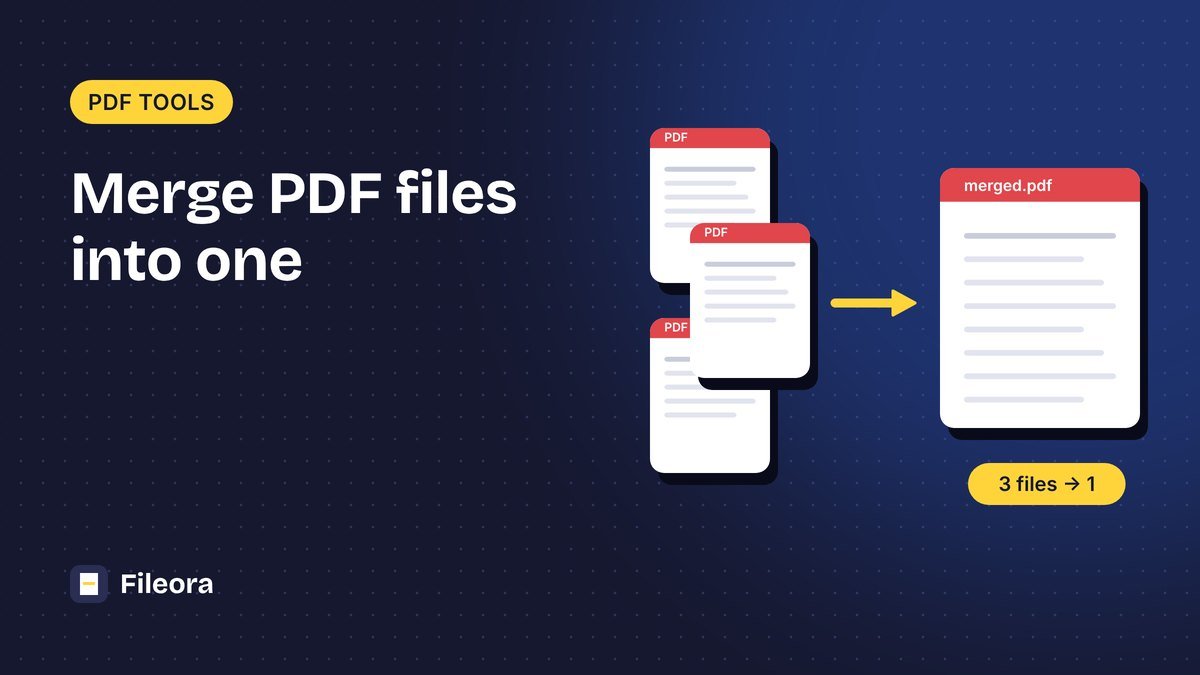
Every job portal seems to want “one PDF”. You have your Aadhaar in one file, two certificates in another, and a marksheet you scanned last night. This guide shows how to merge PDF files into one tidy document in under a minute, for free, on whatever device you have in your hand.
What you’ll need
Just the PDF files and a browser. No app, no account. If some of your documents are photos instead of PDFs, convert them first with JPG to PDF, then come back here.
How to merge PDF files, step by step
- Open Merge PDF on Fileora.
- Drop your files into the box, or tap it and pick them. You can add more later with the plus button.
- Put them in order. The file marked 1 becomes the first pages of the new document.
- Press Merge PDF and download the result.
That’s really all there is to how to merge PDF documents. The part people get wrong is usually the order, so take five seconds on step 3.
Combine PDF files into one, in the order you choose. Free, in your browser.
How to merge PDF files for free (and why it should stay free)
A lot of “free” tools let you merge two files and then ask you to sign up, wait in a queue or remove a watermark. You shouldn’t have to. Fileora is a free PDF merger with no daily limit and no watermark, and the merge happens on your own phone or computer. Your files are not uploaded anywhere, which matters when one of them is your Aadhaar or a bank statement.
Merge multiple PDF files in the right order
When you merge multiple PDF files for an application, think about the person reading it. A sensible order is:
- Application form or cover letter
- Photo ID
- Educational certificates, newest first
- Experience letters
- Anything else the form asked for
If the notification gives an order, follow that instead. Need to move a single page after merging? Open the result in Organize PDF and drag it into place.
How to join two PDF files on your phone
To merge PDF files on mobile, open fileora.in/merge-pdf in Chrome (Android) or Safari (iPhone). Tap the box, choose Files, and select both PDFs. Hold a file to pick several at once on Android. Reorder them with the arrows, tap Merge PDF, and the new file lands in Downloads (Android) or the Files app (iPhone). Learning how to join two PDF files on a phone takes one try; after that it’s muscle memory.
Will my PDF lose quality?
No. When you merge PDF files without losing quality, the pages are copied exactly as they are: no re-compression, no blurry text, links and selectable text stay intact. The file size of the result is roughly the sum of the originals. If that’s too big for the upload box, run it through Compress PDF afterwards.
Merge PDF without software
You don’t need Acrobat or any desktop program to merge PDF without software. A browser tool does the same job, and because Fileora’s Merge PDF runs locally in the browser, it works even on slow connections once the page has loaded. It’s the simplest way to merge PDF online free when you’re on a borrowed computer or a cyber café PC.
Common problems and quick fixes
- The merged file is too large. Compress it, or remove pages you don’t need.
- A page is upside down. Fix it in Rotate PDF before or after merging.
- You only need part of a file. Take those pages out first with Split PDF.
More PDF guides are in the PDF Tools section of our blog.
How do I combine PDF files into one?
Open Merge PDF, add the files, arrange them and press Merge PDF. You get a single document with all the pages in your order.
Is there a limit to how many PDFs I can merge?
No fixed limit. Dozens of files work; very large batches are faster on a computer.
Are my files uploaded when I merge them?
No. Fileora merges them in your browser, so the files stay on your device.
Can I merge PDF and JPG files together?
Convert the JPGs to PDF first with JPG to PDF, then merge all the PDFs.
Tools used in this guide
Free, no sign-up. Browser tools never upload your file.
JPG to PDF
Turn photos and images into a PDF with the page size and margins you choose.
Merge PDF
Combine PDF files into one document, in exactly the order you want.
Organize PDF
Reorder, rotate and delete pages using a visual page view.
Compress PDF
Make PDFs smaller for email and online forms while keeping them readable.